
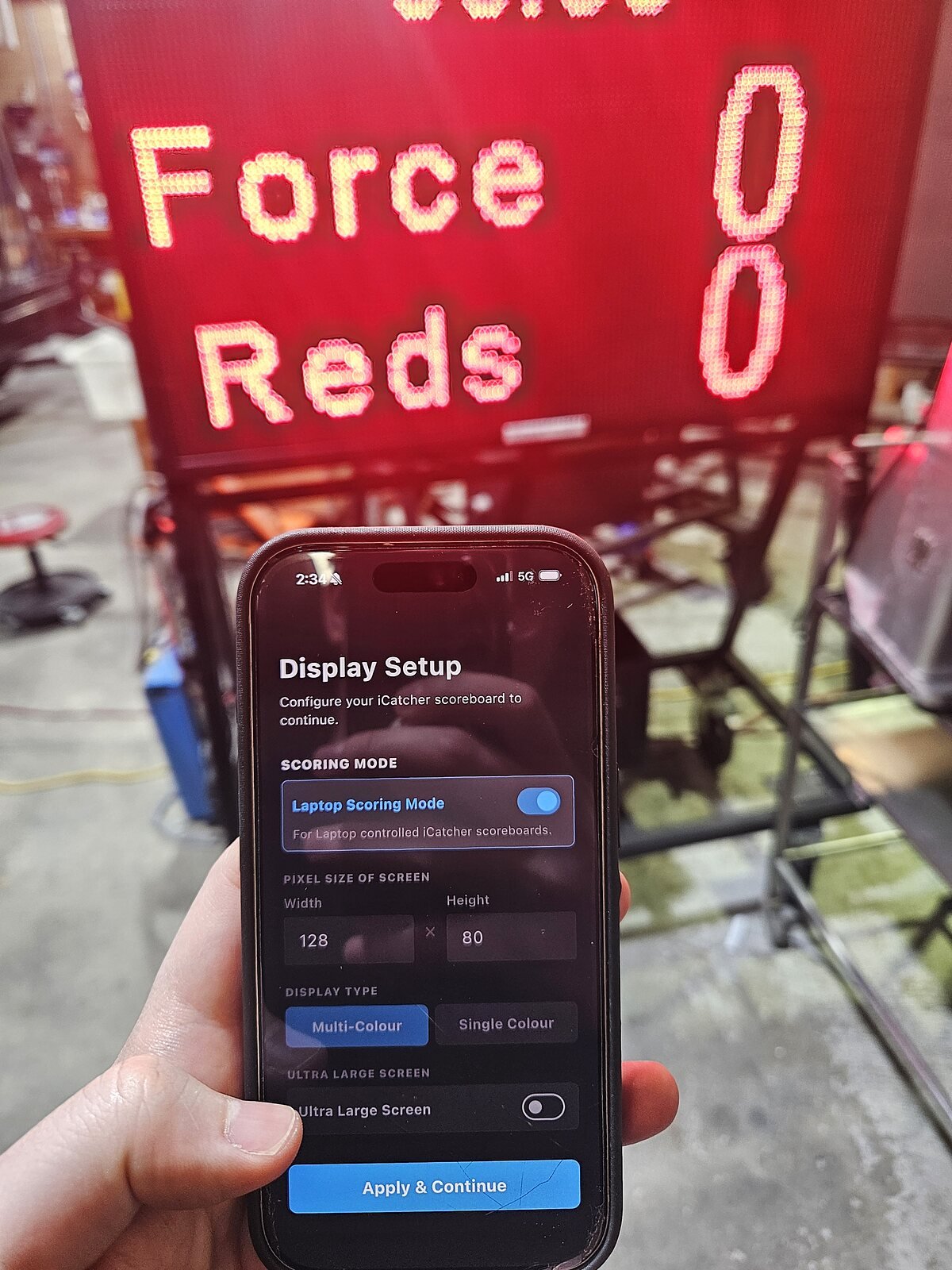
The iCatcher Scoreboard app runs an LED scoreboard from your phone or tablet. You keep score, show your sponsors and put messages on the big screen, with no laptop and no cables. It is on the App Store and Google Play for iPhone, iPad and Android, and it is the software we call Basic.
How it connects
- Switch on the board and give it about 30 seconds to start up and put out its Wi-Fi.
- Connect your phone to the board’s Wi-Fi network. Its name is on your handover sheet.
- Open the app. When the top of the screen turns green and says Connected to Scoreboard, you are ready.
If it won’t connect, turn off your mobile data. On an iPhone or iPad, turn on Local Network for the app.
Ten sports built in
AFL, soccer, cricket, rugby, hockey, basketball, netball, volleyball, futsal and water polo. Pick your sport and the app remembers it for next time.
Three ways to use it
Pick a mode the first time you open the app, and change it any time in Settings.
- Simple: just keep score. The layout is already on the board, so you tap the numbers. The game timer and shot clock are built in.
- Advanced: move and resize the team names, scores and clocks on a live preview, and make sponsor ads with your own words, colours and logos.
- Sign Mode: no game on? Use the screen for welcomes, notices and images. Send a quick message straight to the screen, or save programs and let the board rotate through them.
Keeping score
- Tap to score and the board changes straight away. Tap a score to type it in.
- Basketball has quick +1, +2 and +3 buttons, plus fouls and timeouts.
- The game timer counts up or down. Cricket has no game clock.
- Basketball and hockey have a shot clock with Start, Reset, and Reset & Start.
- Scores are kept if you lock your phone, and clear after 12 hours without use.
Sponsor ads
In Simple mode, tap Ad 1 to Ad 5 to put a sponsor on the board, and set it to go back to the scores on its own after 5, 10, 30 or 60 seconds, or a time you choose. In Advanced mode, you design ads with text and logos, then upload up to eight of them with your sport. Each upload starts a new game, so upload before the game, not during it.
Brightness, power and practice
- Set the brightness by hand, or on a timer that dims and brightens the board at set times.
- Clean Screen blanks the board while you wipe it down, and Display Power turns the whole screen on or off.
- Demo Mode lets you explore the whole app without a board connected, so volunteers can practise before game day.
The app works with full colour and single colour boards. On a single colour (red) board, it hides the colour options and shows everything in red.
Want more? Olympyx
Clubs that want the whole game run from one tablet use Advanced, our Olympyx software. It comes installed on the scoreboard and adds an automatic siren at 0:00, sponsor videos and promos at every break, team logos, an end of game summary and movie nights. Try both on our Products page, which has live demos of Basic and Advanced.
Getting the app and the guide
Search iCatcher Scoreboard on the App Store or Google Play, or use the links on our Downloads page. The full app user guide is on Brochures & Guides.
Looking for a board to run it on? See our electronic and LED scoreboards, read portable or built-in scoreboard, or call Aaron on 0416 053 335 or the office on (08) 9335 7944.
